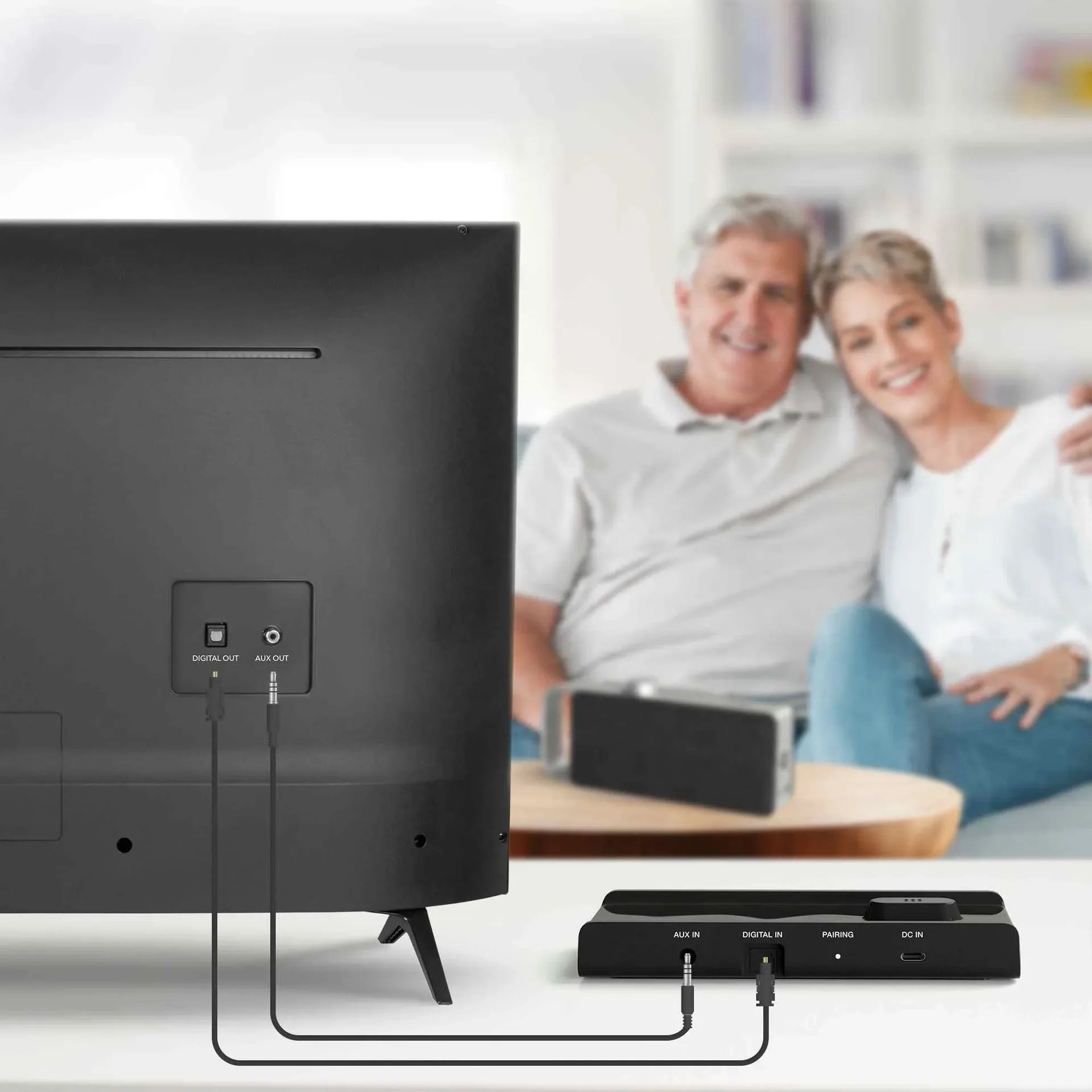
Connecting TV speakers to your television is the key step to achieving optimal sound quality. Whether you’re watching films, TV series or listening to music, choosing the right connection and setting it up carefully have a significant impact on the sound experience. Modern TVs offer numerous options, including HDMI, Bluetooth or analogue interfaces such as RCA. But which connection is right for which setup, and how can you ensure seamless synchronisation? Here you’ll find detailed explanations of the most common types of TV connections, step-by-step guides for all standard connection options, and advice on what to look out for during configuration and troubleshooting.
Key Takeaways
- HDMI ARC/eARC offers the best quality with lossless transmission and supports high-resolution audio formats such as Dolby Atmos
- Bluetooth offers wireless flexibility, but can cause latency issues and fluctuations in quality with lower-quality devices
- TOSLINK connections are interference-free thanks to light pulses, but do not support modern multi-channel audio formats
- Analogue connections (RCA, AUX, 3.5mm) are universally compatible, but limited to stereo sound and prone to interference
- Correct TV configuration required: select the correct audio output, enable external speaker mode, set appropriate sound modes
- Common problems can be resolved through reconnection, cable testing and audio sync functions - aptX Low Latency reduces Bluetooth delays
HDMI: The perfect solution for modern connections
HDMI (High-Definition Multimedia Interface) has established itself as one of the standard connections for transmitting video and audio signals in consumer electronics. HDMI plays a central role, particularly when connecting televisions to external TV speakers or home cinema systems, as it enables high transmission quality using a single cable. Since the introduction of HDMI, the various versions of this technology have continued to evolve to meet growing demands for bandwidth, resolution and audio formats.
The basics of HDMI
HDMI transmits digital audio and video signals in the highest quality, eliminating the need to use multiple cables to connect a TV to external devices. A single HDMI cable handles both video and audio signals. This versatility makes HDMI one of the preferred connection types for modern entertainment systems. Unlike older analogue connections such as Scart or VGA, HDMI offers lossless transmission, ensuring that both picture and sound quality are delivered to the end device in the best possible form. HDMI supports a wide range of resolutions, including Full HD (1080p), 4K and even 8K, meaning that future high-resolution formats can also be transmitted via HDMI without any issues.
Another advantage of HDMI is that it supports all common refresh rates, including 60 Hz, 120 Hz and even 240 Hz in the latest versions. This makes HDMI ideal for applications such as gaming or sports broadcasts, where a high refresh rate is required for a smooth picture.
HDMI versions and their developments
Since its introduction, HDMI has gone through several versions, each offering new features and improved performance. The most important versions include HDMI 1.4, HDMI 2.0 and HDMI 2.1, with each new version bringing greater bandwidth and additional features.
- HDMI 1.4: This version introduced support for 4K resolutions at 30 Hz, 3D content and an Audio Return Channel (ARC). HDMI 1.4 was the first to enable a solution for returning the audio signal from the TV to external speakers via HDMI.
- HDMI 2.0: HDMI 2.0 increased the bandwidth to 18 Gbps and enabled 4K resolution at 60 Hz. This version also offered support for extended colour spaces (e.g. BT.2020) and improved audio quality with multi-channel audio formats such as Dolby TrueHD and DTS-HD Master Audio. HDMI 2.0 became particularly significant for home cinema enthusiasts, as it provided greater bandwidth and thus more flexibility when using high-resolution audio and video.
- HDMI 2.1: HDMI 2.1 is the latest version and offers a bandwidth of up to 48 Gbps, supporting 8K resolution at 60 Hz and 4K at 120 Hz. This version is not only important for displaying high-resolution content, but also for supporting dynamic HDR, which can improve image quality frame by frame. Furthermore, HDMI 2.1 also offers advanced audio formats such as Dolby Atmos and DTS:X, which enable even more immersive sound reproduction.
The increasing bandwidth and functionality of HDMI not only enables the transmission of high-resolution video formats but also supports high-quality audio formats, which are crucial for home cinema setups. HDMI 2.1 ensures that the technology is also equipped to meet future requirements, particularly for 8K content and immersive audio formats.
HDMI ARC and eARC
One of the most significant innovations in the HDMI field was the introduction of Audio Return Channel (ARC) with HDMI 1.4, which allows audio to be transmitted from the TV to a connected audio system via the same HDMI cable. This simplifies cabling, as no additional audio cable is required. ARC is frequently used to send the TV’s audio to external speakers, soundbars or home cinema systems, with the TV acting as the audio source. This is particularly useful when the TV accesses streaming apps or digital TV programmes, which are then transmitted directly to the home cinema system.
With HDMI eARC (enhanced Audio Return Channel) in HDMI 2.1, this functionality has been significantly improved. eARC offers higher bandwidth and supports lossless high-end audio signals such as Dolby Atmos and uncompressed 7.1 channels, which could not be fully supported with ARC. eARC is particularly important for home cinema enthusiasts who wish to use high-resolution audio formats such as Dolby Atmos and DTS:X for a realistic and immersive sound experience. Unlike ARC, eARC also enables the transmission of high-resolution audio in better quality, resulting in overall superior sound reproduction.
Bluetooth connectivity and wireless flexibility for TV speakers
In recent years, Bluetooth has established itself as one of the preferred technologies for connecting devices without cables. Particularly when used with TV speakers, Bluetooth technology offers numerous advantages that make it a practical and flexible solution for audio transmission. The wireless transmission of audio signals between the TV and the speakers significantly reduces cable clutter whilst also enabling convenient handling. Bluetooth offers an ideal solution, particularly in modern living rooms where aesthetics and user-friendliness are paramount.
How the Bluetooth connection works
Bluetooth is based on a wireless communication technology that enables data to be transmitted over short distances. When connecting a TV speaker via Bluetooth, a pairing process takes place in which the speaker and the TV connect to each other. The audio signal is transmitted from the TV to the speaker via radio waves. This connection typically operates in the 2.4 GHz frequency band, which enables stable and reliable data transmission. Once the devices are paired, audio transmission takes place in real time, providing a convenient solution for all devices equipped with a Bluetooth interface.
Another advantage of the Bluetooth connection is that it is compatible with many modern TVs and speakers. Most new TVs and soundbars now feature built-in Bluetooth interfaces, enabling a quick and straightforward connection. Compared to wired connections such as HDMI or TOSLINK, Bluetooth offers greater flexibility as no physical cables need to be laid.
Advantages of Bluetooth connections
Bluetooth technology offers a range of advantages that make it one of the preferred options for connecting TV speakers:
- Wireless freedom: The biggest advantage of Bluetooth is the ability to connect speakers to the TV without cables. This allows for a clean and tidy room setup, as there is no need to run cables across the room. Bluetooth also allows speakers to be placed in different locations within the room without the need for a physical connection.
- Easy setup: Bluetooth connections are generally quick and easy to establish. Once the speakers have been put into pairing mode, they can be connected quickly and easily via the TV menu. This simple process reduces the complexity of the installation and makes it easy to set up the speaker system without any technical expertise.
- Versatility and flexibility: Bluetooth connections offer a high degree of flexibility, as speakers can be easily connected to various devices. They are not dependent on a specific system or type of cable. This means that the speaker can be used not only with the TV, but also with smartphones, tablets or laptops to stream music or watch films.
- Portability: Bluetooth speakers also offer the advantage of portability. If the speaker is wireless, it can easily be carried from one room to another or used on the move without having to establish a new connection. This is particularly useful when the speaker is used for different purposes or in different locations around the home.
Limitations and considerations
Although Bluetooth offers many advantages, there are also a few limitations that should be borne in mind when using Bluetooth connections. One of the biggest challenges with wireless connections is latency. Latency refers to the delay that can occur when the audio signal is transmitted from the source (the TV) to the speaker. This can lead to problems, particularly with the synchronisation of sound and picture, which can affect the quality of the viewing experience. When using Bluetooth, latency can cause the sound to lag slightly behind the picture, which can be distracting when watching films or TV series. This is particularly noticeable with lower-quality devices. High-quality Bluetooth TV speakers can now compensate for this almost entirely automatically.
How the Bluetooth connection works
Bluetooth is based on a wireless communication technology that enables data to be transmitted over short distances.
Advantages of Bluetooth connections
Bluetooth technology offers a number of advantages that make it one of the preferred options for connecting TV speakers:
Limitations and considerations
Although Bluetooth offers many advantages, there are also a few limitations that should be taken into account when using Bluetooth connections...
Analogue connections such as RCA, AUX and 3.5 mm jack
Despite the increasing prevalence of digital connection options such as HDMI and Bluetooth, analogue connections such as RCA, AUX and 3.5 mm jack have not lost their importance in many audio applications - particularly with older devices. These classic connections are still frequently used to transmit audio between different devices, particularly in older or simpler systems. Although they are limited in terms of quality and maximum performance compared to digital connections such as HDMI or TOSLINK, they nevertheless offer practical solutions for connecting TV speakers and other audio devices.
RCA connector
The RCA connector, also known as Cinch, is one of the oldest and best-known analogue connections, often used for stereo audio transmission. These connectors typically consist of two cables, one red and one white, which carry the right and left audio signals. The RCA connector is generally used with older audio and video devices and is frequently found on hi-fi systems, televisions and DVD players.
The way the RCA connector works is simple: the red cable transmits the audio signal for the right channel (stereo), and the white cable handles the left channel. These analogue connections are ideal for systems where audio quality is not a top priority, or where the television or speakers do not offer digital inputs.
A key advantage of the RCA connector is its widespread use and compatibility with older devices that do not support digital connections. However, the sound quality of RCA connections is limited compared to digital interfaces. As the signal is transmitted analogically, it can suffer from interference and signal loss, particularly over longer distances or when using poor-quality cables.
AUX connection
The AUX connection is another common analogue connection found in many audio devices. It is often a 3.5 mm jack socket, which is integrated into many portable speakers, smartphones, laptops and televisions. The AUX connection is frequently used to transmit audio from one device to another, for example from a smartphone to a speaker or from a television to an external speaker.
The 3.5 mm jack transmits the audio signal in stereo, with the signal for the right channel and that for the left channel distributed to different poles of the jack respectively. This type of connection is particularly useful for devices with a compact design, as it enables a simple and straightforward connection without the need for additional hardware.
A major advantage of the AUX socket is its universal compatibility. The 3.5 mm socket is the global standard for portable audio devices and allows a wide variety of devices to be connected to one another, regardless of brand or model. Furthermore, the AUX socket is easy to use and requires no complicated settings.
However, the AUX connection also has some limitations. Sound quality may suffer compared to digital connections such as HDMI or TOSLINK, particularly with longer cables or when using low-quality cables. Furthermore, the AUX connection does not support the transmission of multi-channel audio formats such as Dolby Atmos or DTS:X, making it less suitable for use in high-end home cinema systems.
3.5 mm jack
The 3.5 mm jack is widely used in the world of audio technology. It is a small, round connector found in many devices such as smartphones, laptops, portable speakers and even some televisions. This connector is particularly well-suited for connecting headphones or portable speakers. It is also the standard connector for many older audio amplifiers and hi-fi systems.
The 3.5 mm jack typically transmits a stereo signal (left and right), and depending on the model, it can also be used as a combined jack for microphones and headphones, particularly on computers or mobile devices. Its ease of use and widespread availability make the 3.5 mm jack an extremely practical connector. It is also inexpensive and easy to replace, making it a preferred choice for many users.
Another advantage of the 3.5 mm jack is its ease of use. The cables are relatively inexpensive and available in almost any electronics department, ensuring their availability. The simple plug-and-play functionality makes the connection straightforward and user-friendly.
Limitations of analogue connections
Despite their widespread use and practicality, analogue connections such as RCA, AUX and 3.5 mm jack have several limitations compared to digital interfaces. The sound quality is generally lower than with digital connections, as analogue signals are susceptible to interference and distortion. In particular, over long cable runs or with poor-quality cables, the audio signal can be compromised, which can lead to a loss of sound clarity and precision.
Another issue is that analogue connections do not support multi-channel audio formats. Whilst HDMI or optical connections allow for the transmission of high-resolution audio formats such as Dolby Atmos or DTS:X, RCA, AUX and 3.5 mm jack can only transmit stereo audio signals, which limits their suitability for modern home cinema applications.
Furthermore, analogue connections can result in greater signal loss compared to digital connections. Digital connections such as HDMI or TOSLINK offer lossless transmission, whilst analogue signals can be affected by environmental interference, cable quality or even excessive cable lengths.
Optical connections with TOSLINK
Optical connections using the TOSLINK protocol (Toshiba Link) are a tried-and-tested method for transmitting audio signals in both modern and classic home cinema systems. TOSLINK transmits digital audio signals via light pulses rather than using electrical signals, as is the case with many other cable types. This technology has proven itself to be reliable over decades and is still used in many audio and video systems to improve audio quality whilst ensuring a simple connection.
How TOSLINK works
The basic principle of TOSLINK is to convert digital audio signals into light pulses that are transmitted via a fibre-optic cable. This method has the advantage that the signals are not affected by electromagnetic interference, which can frequently occur with electrical cables such as coaxial or HDMI connections. Fibre-optic cables are less susceptible to external interference, resulting in more stable and interference-free signal transmission. The use of light for signal transmission eliminates the risk of signal loss that can occur with conventional copper cables.
TOSLINK is therefore particularly advantageous for connections where signal purity and immunity to interference are of great importance. It is used in many audio and video systems to ensure high sound quality, particularly when transmitting 5.1- or 7.1-channel surround sound, which is essential for home cinema applications.
Advantages of the TOSLINK connection
- Interference-free transmission: A key advantage of TOSLINK is its immunity to electromagnetic interference. As the signal is transmitted as a light pulse, no electrical interference such as noise or interference can penetrate the audio transmission. This makes TOSLINK an excellent choice in environments where many devices or cables come into contact with one another and could cause interference.
- High sound quality: TOSLINK supports the transmission of uncompressed digital audio signals, resulting in excellent sound quality. As the signal remains unchanged, no information is lost during transmission. This feature is particularly important for home cinema systems that use audio formats such as Dolby TrueHD or DTS-HD Master Audio, which require high fidelity.
- Compatibility: TOSLINK is widely used in many devices. It is often found in home cinema receivers, soundbars, televisions and Blu-ray players. Particularly in older devices that do not offer HDMI connections, TOSLINK provides a reliable and high-quality audio connection.
- Easy installation: Installing TOSLINK connections is generally straightforward. No complex setups are required, and most TOSLINK ports are clearly labelled, making them easy to identify and connect.
Limitations of TOSLINK
Despite some advantages, the TOSLINK connection also has certain limitations that should be taken into account when choosing the right audio connection. One of the biggest limitations is the limited data transfer rate that TOSLINK has compared to modern connection types such as HDMI. This limitation means that TOSLINK cannot transmit high-resolution audio formats such as Dolby Atmos or DTS:X without a loss of quality, as these formats require greater bandwidth. Furthermore, the maximum cable length for TOSLINK is limited, meaning that longer cable runs can lead to signal loss, which affects audio quality. Another issue is that TOSLINK does not support video transmission, meaning it always requires a separate connection for video transmission. Furthermore, TOSLINK is not ideal for transmitting high-resolution audio data or advanced audio formats, as it cannot transmit uncompressed audio signals of the highest quality compared to HDMI. Whilst these limitations make TOSLINK a good choice for stereo and multi-channel audio formats, they make it less suitable for systems that wish to utilise the latest and most demanding audio formats.
TV configuration to optimise audio settings
The correct audio settings on your TV can have a significant impact on sound quality and the overall viewing experience. Even the best speaker system or the highest-quality soundbar can only reach its full potential if the TV is correctly configured to deliver the audio optimally. Modern TVs offer a wide range of audio settings that can be customised to tailor the sound to your specific requirements and the room environment. A thorough and well-thought-out configuration can make the difference between average and impressive sound.
1. Selecting the correct audio output
The first step in optimising the audio settings is to select the correct audio output on the TV. Many modern TVs offer various audio output options, including HDMI ARC/eARC, optical connections (TOSLINK), AUX or Bluetooth. It is crucial to select the output that matches the connection between the TV and the external speakers or soundbar. For example, when using HDMI ARC/eARC, this output should be selected in the TV’s menu to ensure that the audio is sent correctly to the audio system via the HDMI cable. For a Bluetooth connection, the speaker must be paired via the TV’s Bluetooth settings to activate the wireless connection.
2. Enabling external speaker mode
Many TVs are set by default to output sound via the device’s built-in speakers. To use an external speaker system, the ‘external speaker’ mode often needs to be activated in the TV menu. This option ensures that the TV no longer sends the audio signal to the internal speakers, but instead routes it to the external speakers or a soundbar. This setting is crucial for optimising sound quality and utilising the full potential of a high-quality audio system.
3. Selecting the right sound mode
Most TVs offer various sound modes specifically tailored to different types of content. These modes optimise the audio output depending on the use case, so that the sound is adjusted for music, films, news or sporting events. Some common sound modes include:
- Film mode: Often boosts the low frequencies and provides powerful bass to enhance the cinema experience.
- Music mode: Provides balanced sound reproduction to optimally present music with clear highs and mid-range frequencies.
- Voice mode: Emphasises the mid-range frequencies to improve the clarity of dialogue.
- Sports mode: Accentuates both low and high frequencies to make the sound of commentary and stadium noise more realistic.
Selecting the right sound mode can enhance the viewing experience depending on the content, with each mode tailoring the sound to the specific requirements.
4. Adjusting the volume and balance
Fine-tuning the volume and balance is another important step in configuring the TV audio system. Many televisions offer the option to adjust the volume for the various speaker channels, particularly when using multi-channel systems or soundbars. The balance between the channels (left and right channels as well as the subwoofer) can be adjusted to ensure an even distribution of sound throughout the room. Particularly in large or irregularly shaped rooms, it is important to optimise the volume so that the sound is evenly and clearly audible without any individual channels dominating excessively.
In addition to the balance, volume limiting can also be activated to ensure that the TV sound never becomes excessively loud or distorted, particularly during quiet or very loud scenes in films or series. This feature ensures a consistent volume that is pleasant to the ear, without sudden volume spikes.
5. Activating audio enhancement technologies
Many televisions and audio systems offer technologies to enhance sound quality, which can be activated to improve the listening experience. The best-known technologies include:
- Dolby Digital and DTS: These formats offer an enhanced surround sound experience, making the listening experience more realistic and immersive. Dolby Digital and DTS can help project sound precisely into the room when playing back multi-channel audio formats.
- Dolby Atmos: This technology delivers an even more immersive sound experience by distributing sound not only horizontally but also vertically. Using Dolby Atmos can result in a truly impressive audio experience, particularly with home cinema systems featuring ceiling speakers or specialised speakers that project sound waves upwards.
- Equaliser settings: Some televisions and soundbars offer the option to further adjust the sound using an equaliser (EQ). An EQ can be used to boost or cut frequencies as desired, allowing the sound to be tailored to the room and individual preferences. This is particularly useful for improving speech clarity or boosting the bass.
Configuring a TV’s audio settings correctly is crucial for achieving the best sound experience. Selecting the correct audio output, enabling external speaker mode, adjusting sound modes and utilising audio enhancement technologies all help ensure the sound is optimally suited to the room environment and the TV’s content. When set up correctly, the TV and speakers can perform to their full potential and deliver an impressive and realistic listening experience.
Troubleshooting common problems and solutions
Even with careful setup, problems can still arise when connecting TV speakers and audio output. These issues can often be resolved through simple adjustments or checks. Below is a summary of some common causes of problems and suitable solutions to help you quickly optimise the audio connection and resolve any potential issues.
No sound despite connection
A common problem when using external speakers is that no sound is output despite the connection appearing to be correct. In this case, it is important to check several things:
- Switch on the speakers and check the source: Firstly, ensure that the speakers are switched on and set to the correct source. Many speakers or soundbars have multiple inputs, and you must check that the speaker is switched to the input via which the connection to the TV was established.
- Check the audio output in the TV menu: In most cases, the audio settings in the TV menu need to be checked and adjusted. With modern TVs that support both internal speakers and external audio sources, it is important to select the correct audio output. In many cases, the default output is set to the TV’s internal speakers. If an external speaker is connected via HDMI, Bluetooth or an optical cable, the corresponding output (e.g. HDMI ARC, Bluetooth or TOSLINK) must be enabled in the menu to route the audio signal to the external speakers.
- Check the connection (wired or wireless): For wired connections, ensure that the cable is properly connected and that there are no loose connections. For wireless connections such as Bluetooth, check that the connection has been established successfully and is stable.
Out-of-sync audio with Bluetooth
Another common issue when using Bluetooth connections is a lack of synchronisation between picture and sound. This means that the sound lags behind the picture or vice versa, which can significantly impair the viewing experience. In most cases, this is due to the latency of the Bluetooth connection.
- Using a Bluetooth adapter with aptX Low Latency: An effective solution is to use a Bluetooth adapter with aptX Low Latency. This technology reduces the delay and ensures that sound and picture remain synchronised. aptX Low Latency is specifically designed to minimise latency, which is particularly beneficial for synchronising audio and video when using wireless Bluetooth speakers.
- Alternatively, switch to wired connections: If the desynchronisation cannot be resolved even with a low-latency adapter, a wired connection is a possible alternative. HDMI, TOSLINK or even analogue connections such as AUX offer virtually latency-free audio transmission, ensuring better synchronisation between picture and sound.
Interference with analogue connections
Analogue connections such as RCA, AUX or 3.5 mm jack offer a simple way to transmit audio, but are more prone to interference and signal loss compared to digital connections.
- Check cables for damage: One of the most common causes of interference or distorted sound with analogue connections is damaged or poor-quality cables. It is advisable to check the cables for visible damage, such as cracks or signs of wear. Even if the cables appear intact on the outside, they may be damaged internally and affect signal quality. In this case, the cables should be replaced.
- Check the connection: With analogue connections, ensure that the cables are correctly and securely plugged into the appropriate sockets. A loose connection can lead to signal loss and consequently to interference or a failure of the audio signal. Particular care should be taken with RCA and AUX sockets to ensure that the plug is fully inserted.
- Remove sources of interference: As analogue cables are susceptible to electromagnetic interference, it may be helpful to remove potential sources of interference, such as other electronic devices located in the immediate vicinity of the cables or sockets. Devices such as microwaves, wireless routers or even mobile phones can cause interference and impair audio quality.
Synchronising sound and picture for perfect coordination
Precise synchronisation of picture and sound is crucial for an optimal viewing experience. Latency issues, where the sound does not match the picture, can occur particularly when using wireless connections such as Bluetooth. This lack of synchronisation is disruptive and affects the enjoyment of films or music. Fortunately, there are several ways to minimise latency and optimise synchronisation to ensure perfect alignment between audio and video.
Reducing Bluetooth latency
Bluetooth connections are particularly prone to latency issues. As Bluetooth transmits signals wirelessly, there is a certain delay between the audio source (the TV) and the speaker or soundbar. This delay can be particularly disruptive when the sound does not match the actors’ lip movements or the action on screen.
- Use aptX Low Latency: One of the most effective solutions for reducing Bluetooth latency is to use devices that support the aptX Low Latency codec. This codec has been specifically designed to minimise the delay in audio transmission, ensuring near-synchronous playback of sound and picture. If both the TV and the speaker support aptX Low Latency, a significantly lower delay can be achieved. In combination with other optimisation options, this codec can largely resolve the issue of asynchrony.
- Use the TV’s audio sync function: Many modern TVs offer a built-in audio sync function that allows you to manually adjust the delay between picture and sound. If a Bluetooth connection is being used and there is noticeable latency, this function can be activated in the TV’s menu. The user can adjust the audio delay to ensure that the sound matches the on-screen action precisely. Although this function cannot completely eliminate all latency issues, it helps to noticeably improve audio and video synchronisation.
Settings for HDMI and TOSLINK
Even with digital connections such as HDMI and TOSLINK, a lack of synchronisation between picture and sound can occasionally occur, although these connections generally offer better transmission quality than Bluetooth. With modern home cinema systems featuring external speakers or soundbars, a delay may occur if the TV and the audio system are not optimally synchronised.
- Adjusting the delay in the audio settings: Many televisions offer the option to manually adjust the audio settings to achieve synchronisation between picture and sound. If the sound lags behind the picture, the audio delay can be increased in the TV menu options so that the sound is played back later and better matches the visual content. With HDMI and TOSLINK connections, it is important to check these settings regularly to ensure there is no desynchronisation. This adjustment may be necessary particularly when using multi-channel audio formats or high-quality surround sound systems, as audio processing can cause additional delays.
- Synchronisation with multi-channel audio: When using surround sound systems or soundbars that utilise multiple speakers, additional latency may occur, particularly when synchronising the various channels. In multi-channel setups, it is not uncommon for sound from the rear speakers or subwoofers to be output later than the sound from the front channels. Here too, the audio sync function on the TV or AV receiver can help adjust the various speaker channels so that all sound sources are played back simultaneously.
Delays caused by external devices
Latency can also occur when using external devices such as Blu-ray players, streaming boxes or games consoles. These devices must process the audio signal before passing it on to the TV or speakers. To avoid synchronisation issues, all devices should be set to the same audio settings, and you should check whether additional features such as lip-sync or audio delay are available in the external device’s menu.
Another issue when using streaming services such as Netflix or Amazon Prime Video is that some content has a built-in delay, particularly on older devices or when using wireless networks. In such cases, it often helps to check the audio settings in the streaming menu and select alternative audio formats that ensure better synchronisation.